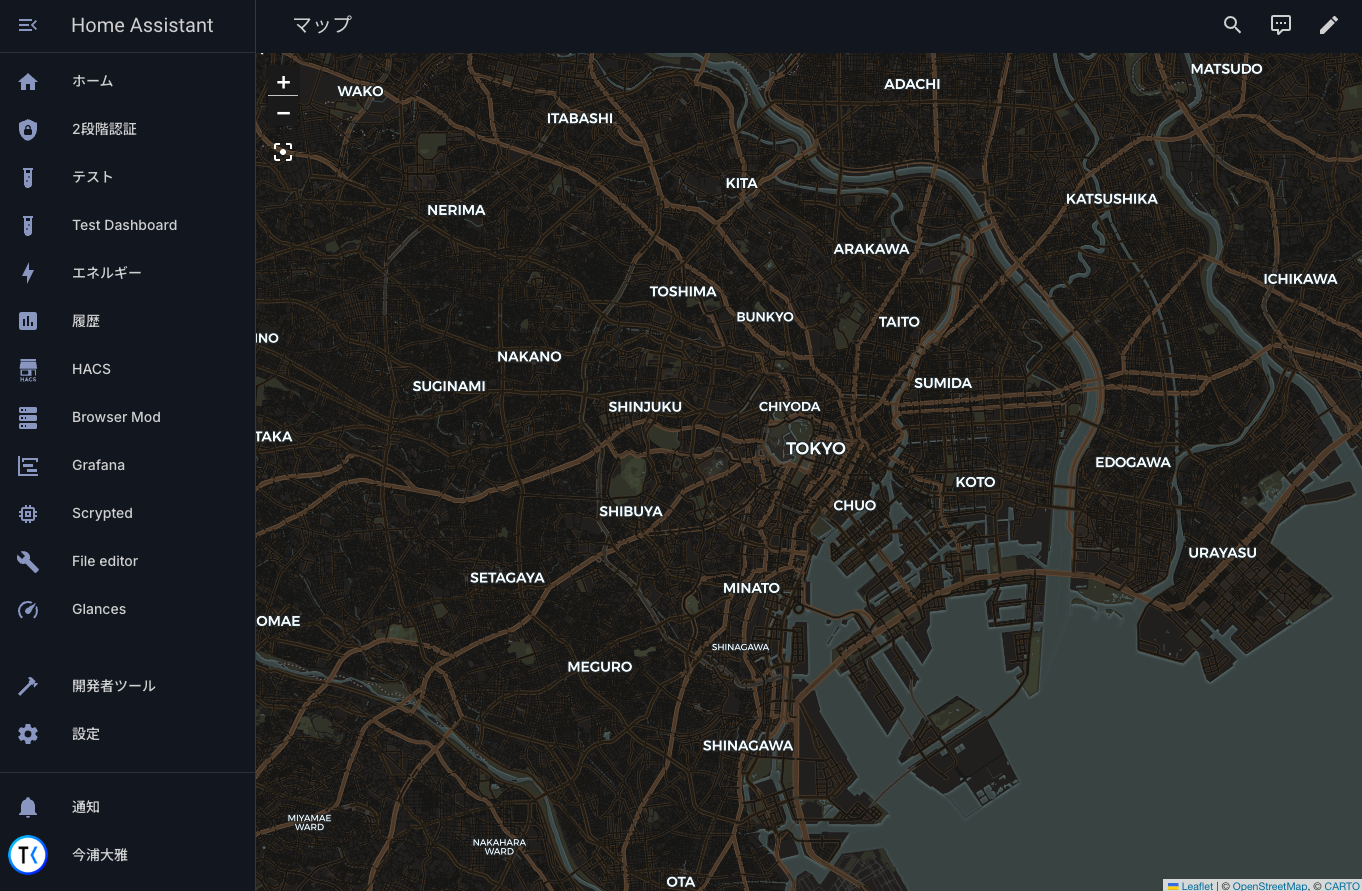
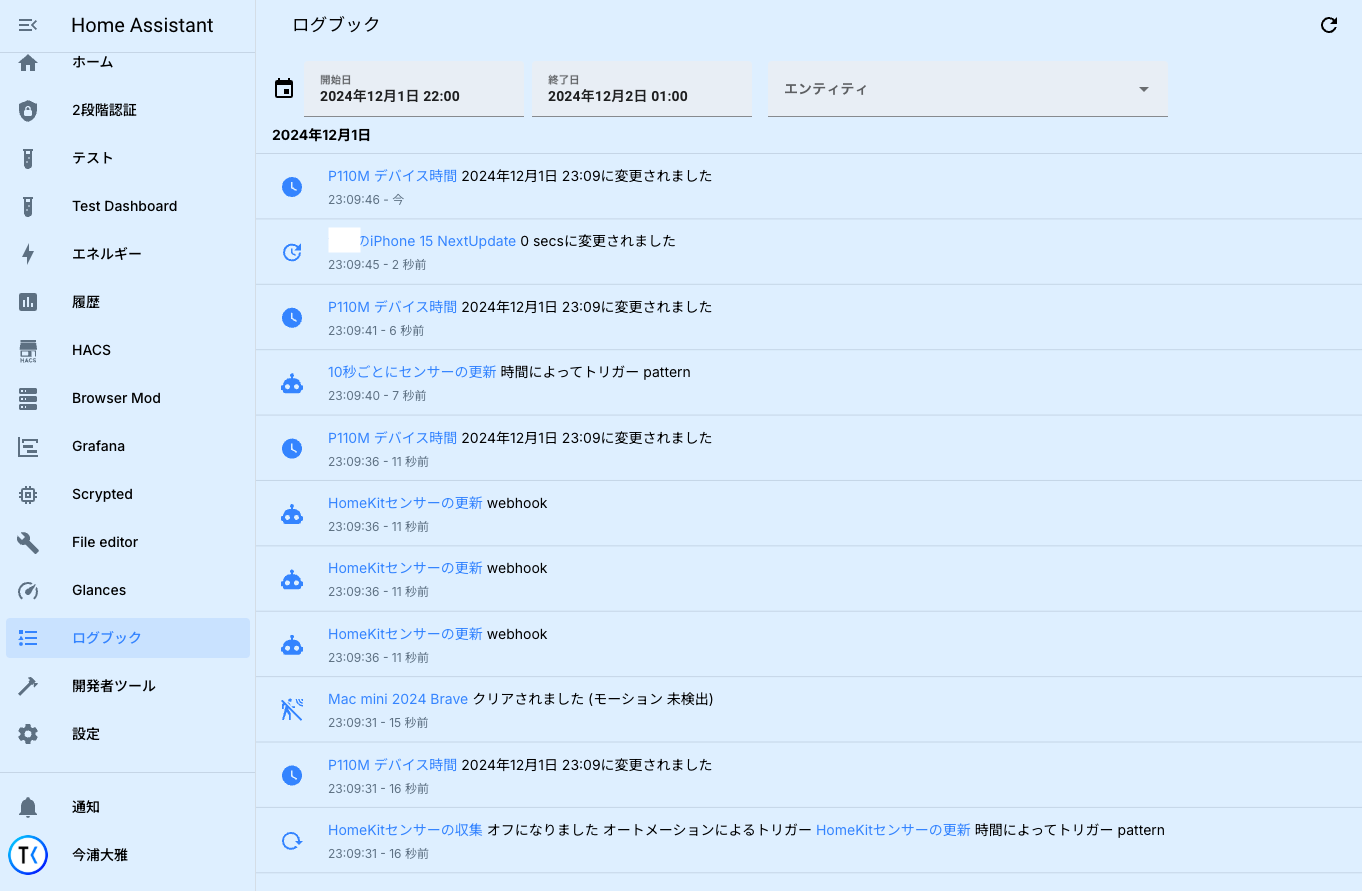
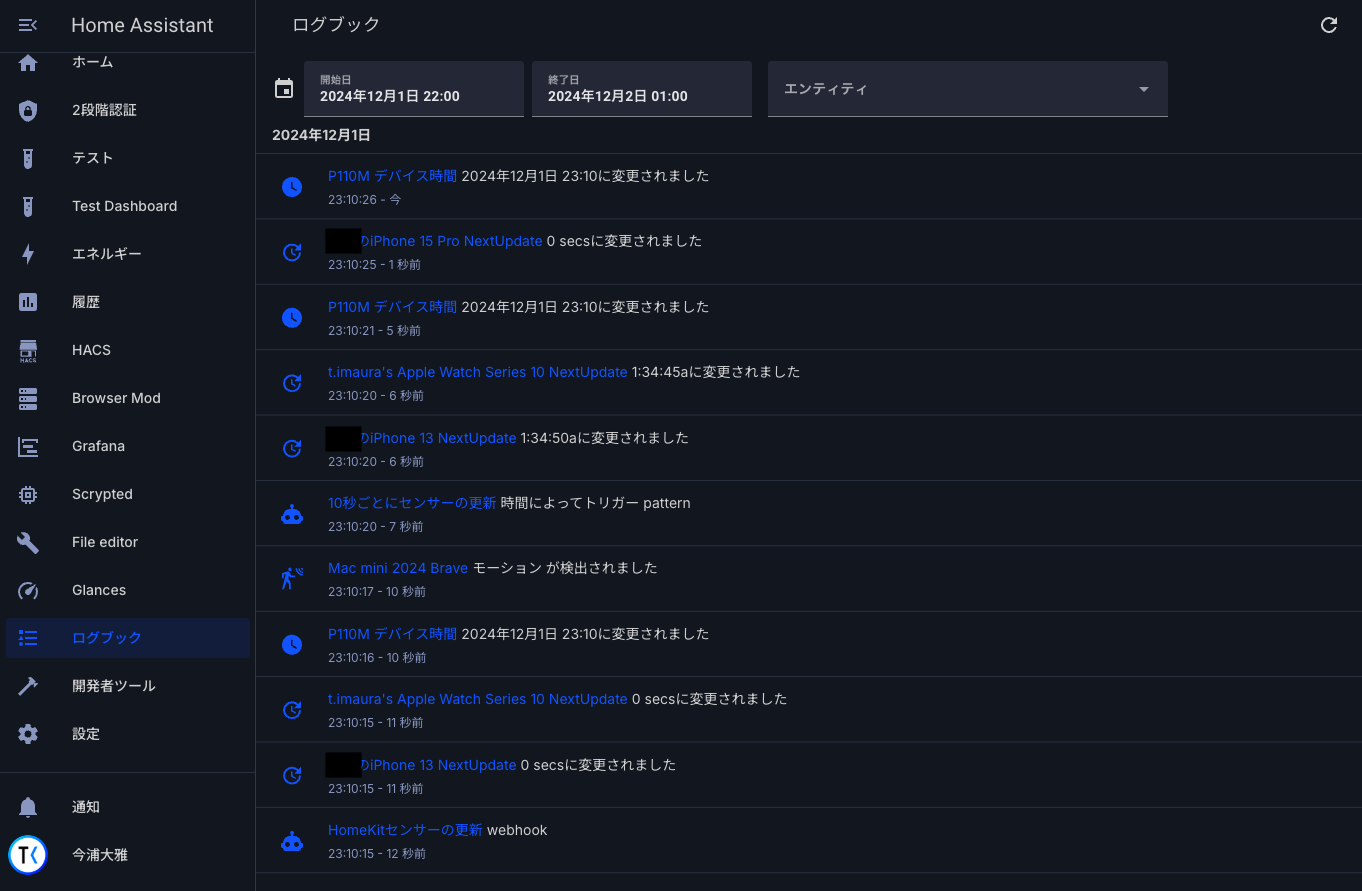
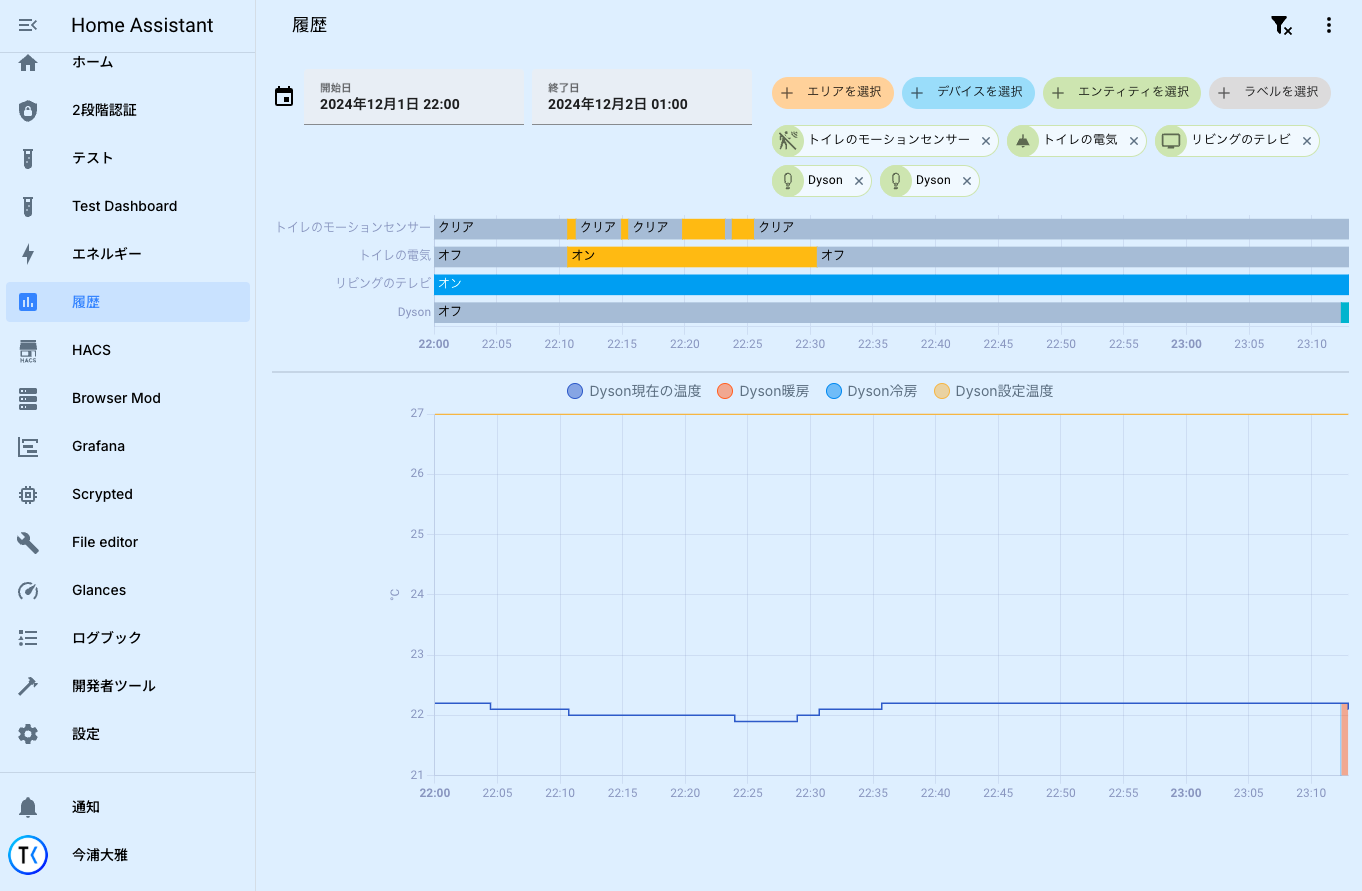
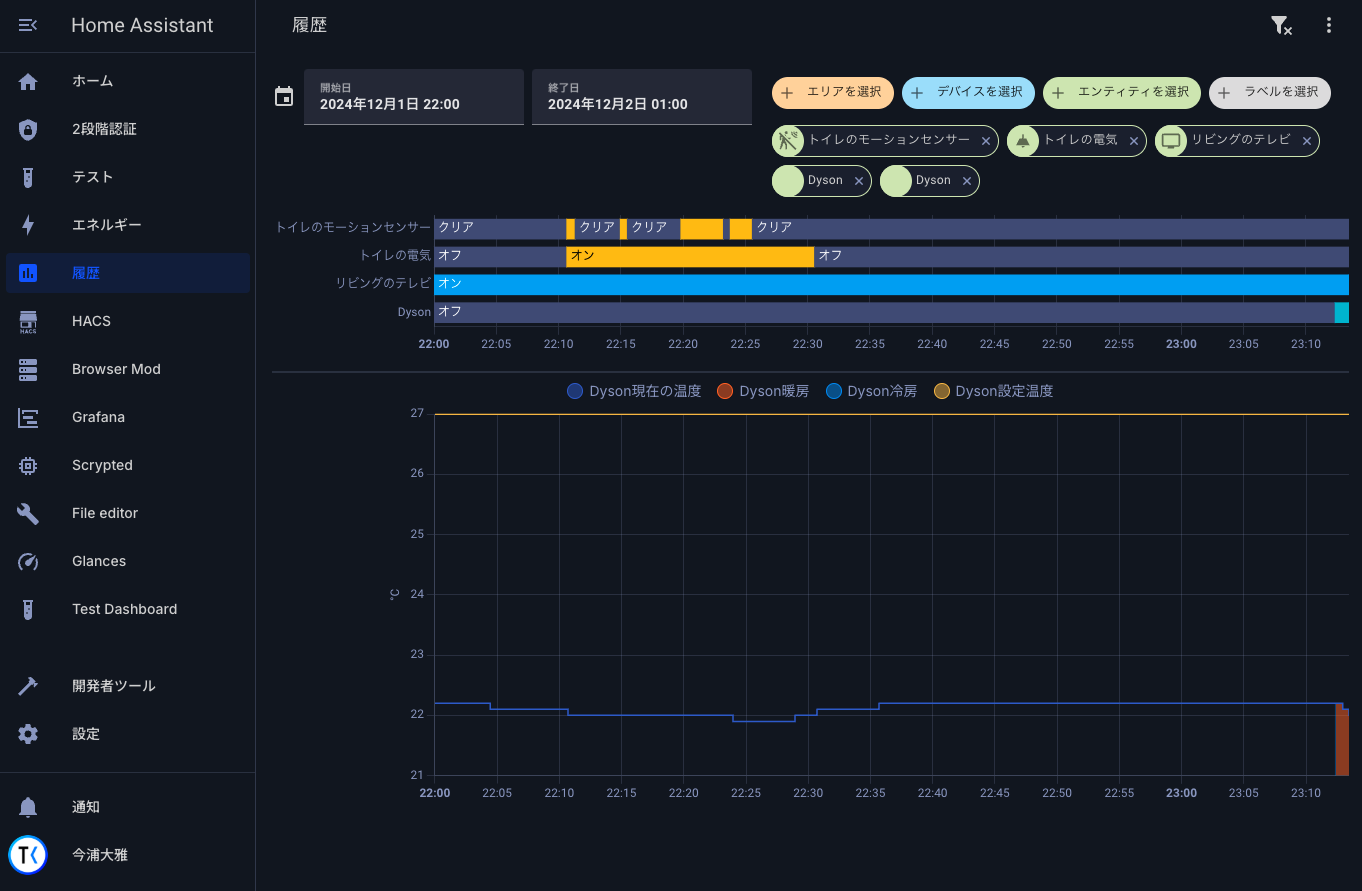
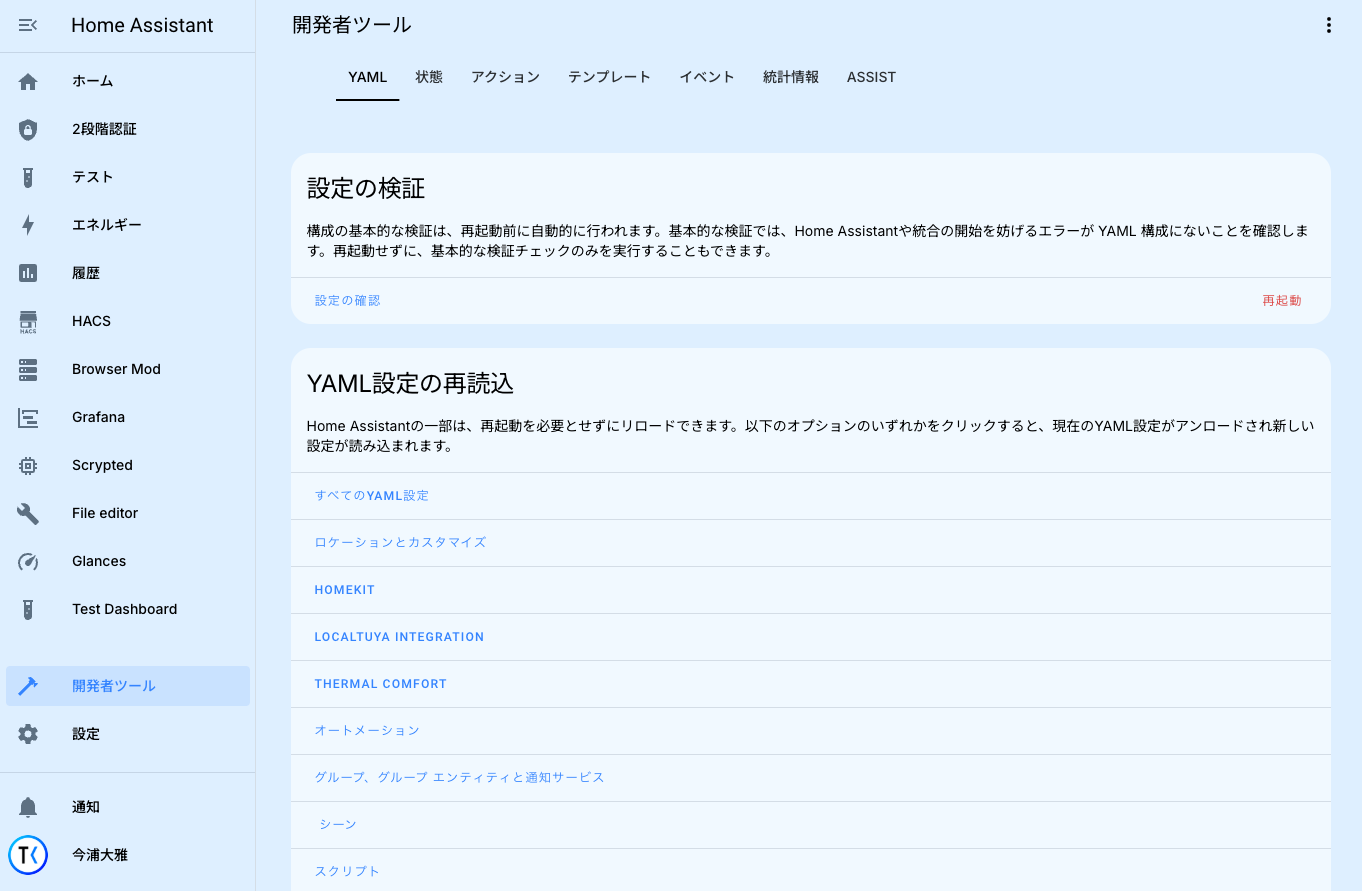
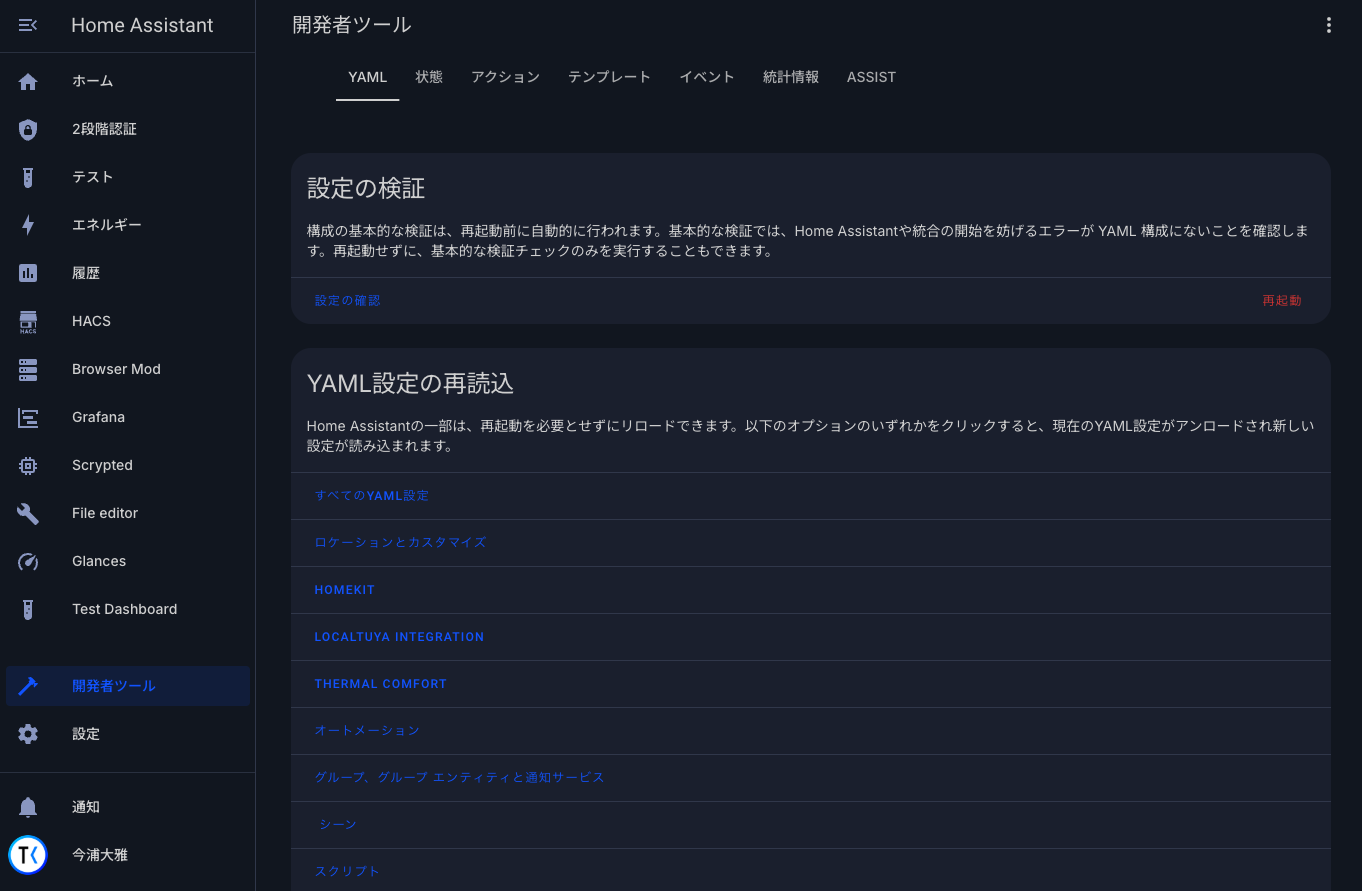
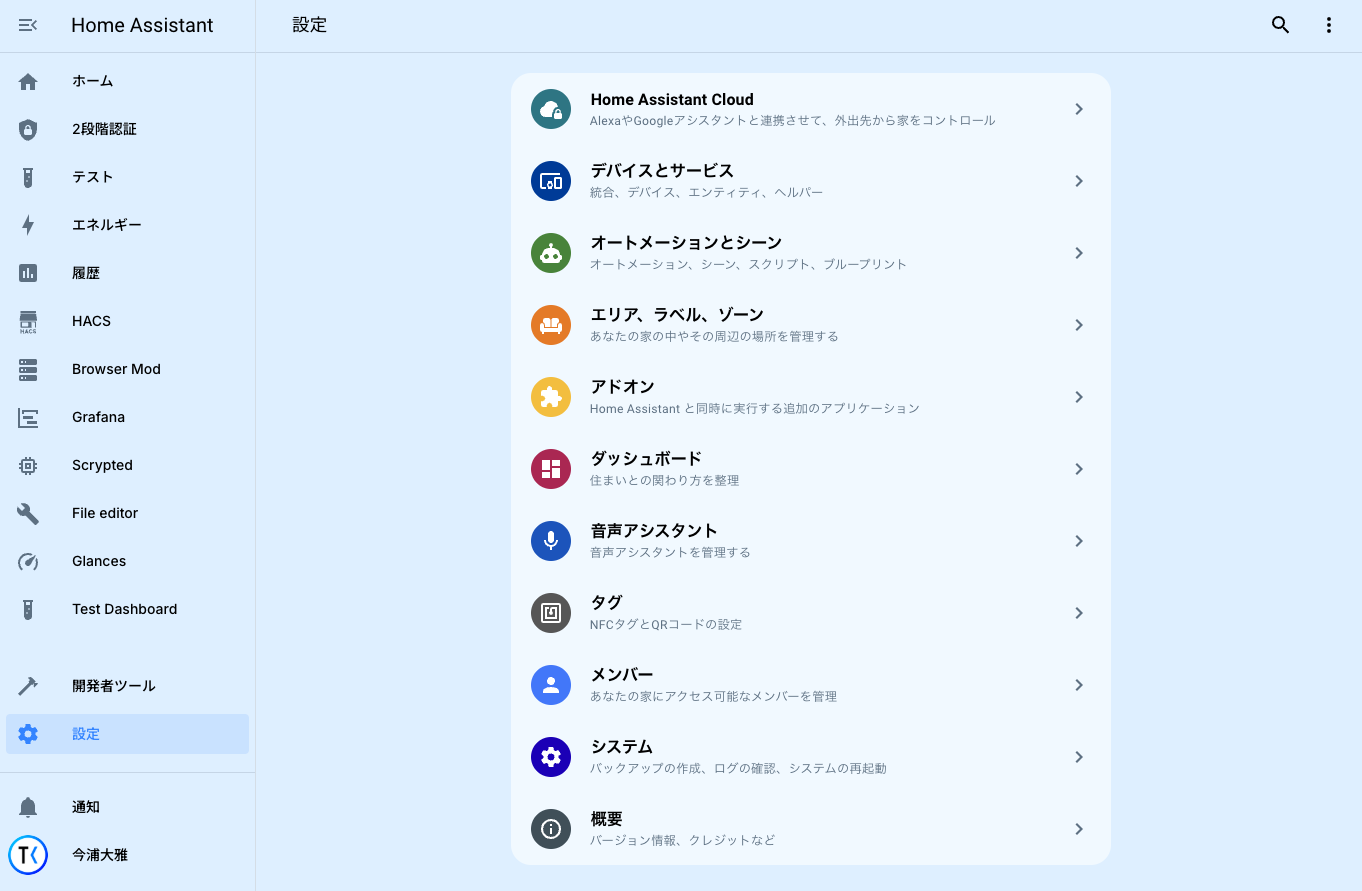
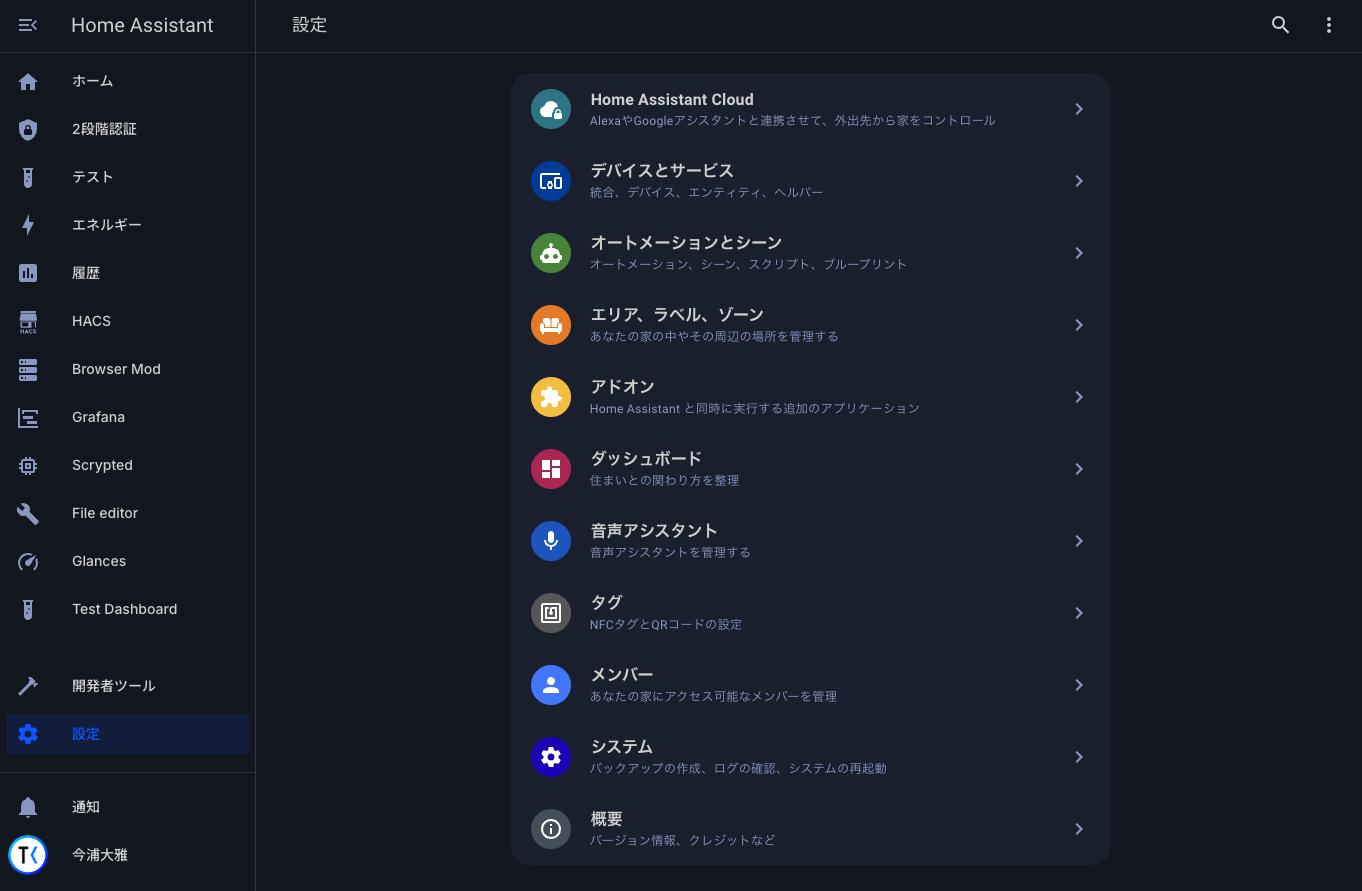
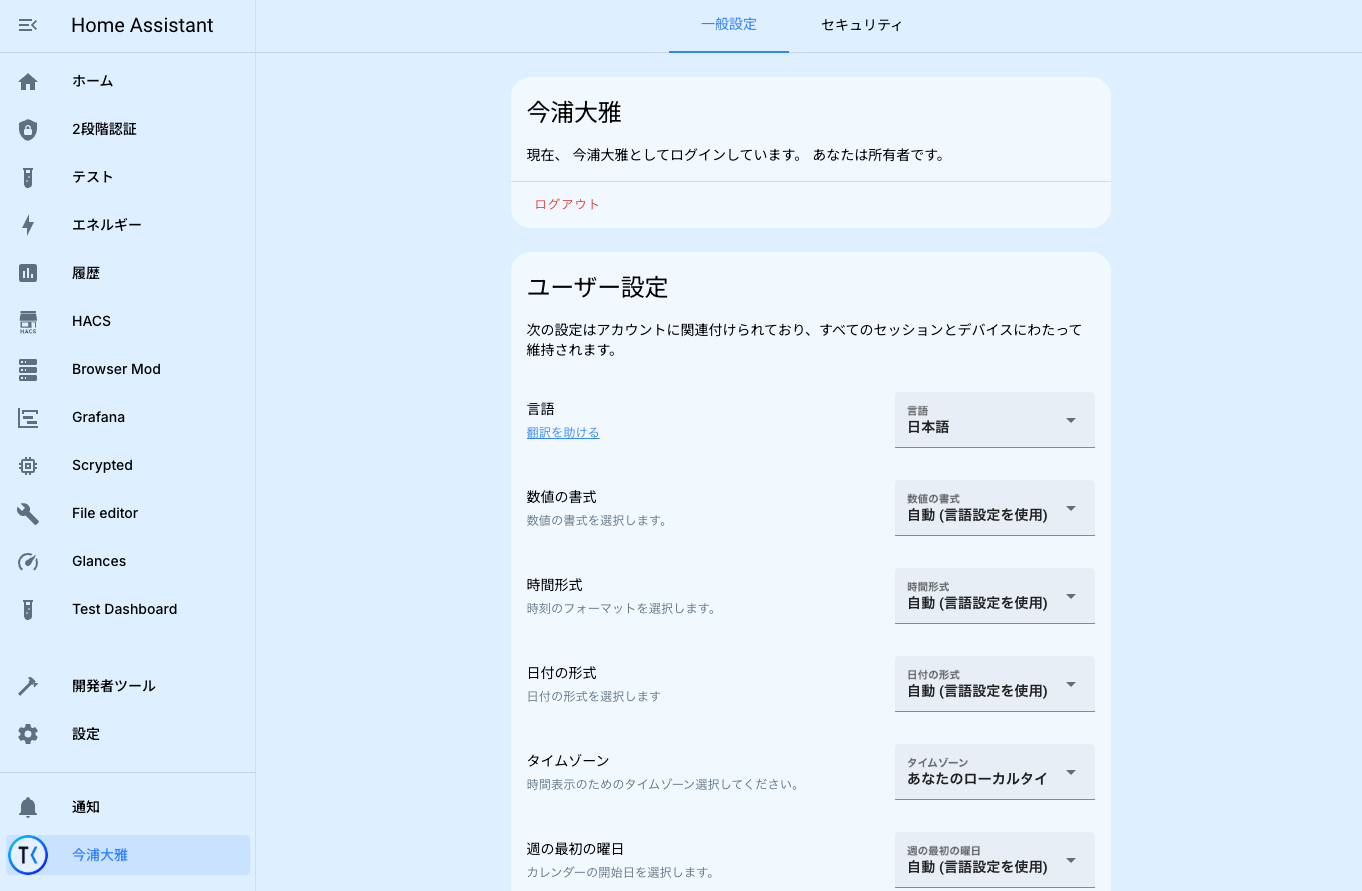
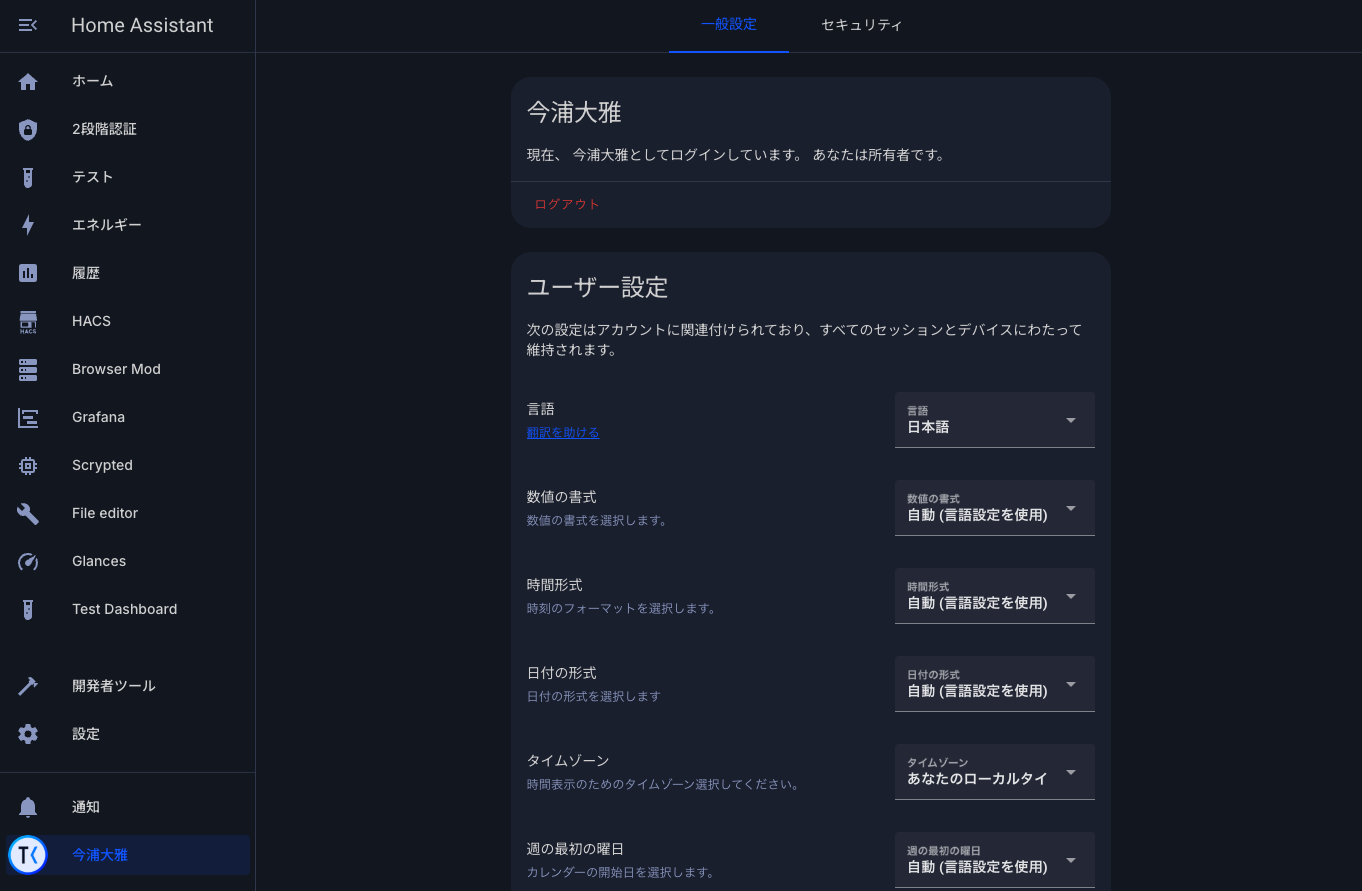
Add the following code to your configuration.yaml file (reboot required).
frontend:
  themes: !include_dir_merge_named themes
If it already exists, nothing needs to be done.
To use the fonts specified in this theme, you need to add a resource from the Dashboard Settings.
Go to Home Assistant Settings -> Dashboards -> Resources and add resources with the following settings:
https://fonts.googleapis.com/css2?family=Cousine:wght@400;700&family=Inter:ital,opsz,wght@0,14..32,100..900;1,14..32,100..900&family=Noto+Sans+JP:wght@100..900
Select Stylesheet
- Go to the Community Store.
- Click on the icon in the upper right corner and open
Custom repositories. - In the
Repositorysection, add this:https://github.com/taikun114/Blue-Theme-by-taikun114 - In the
Typesection, selectThemethen clickADD - Click
Blue Theme by taikun114and clickDownload - Go to Profile Settings, change to the downloaded theme, and you're done!
- Download this theme file: Blue-Theme-by-taikun114.yaml
- Open the
themesfolder in the Home Assistant config folder and create a folder namedBlue-Theme-by-taikun114in it. - Put the
Blue-Theme-by-taikun114.yamlthat you just downloaded into the folder you created. - Open the Home Assistant Developer tools and click on
ALL YAML CONFIGURATIONunderYAML CONFIGURATION RELOADING - Go to Profile Settings, change to the downloaded theme, and you're done!
This theme changes the spacing of Mushroom Title Card. Please note that this may result in a slightly broken layout if you are using Mushroom Title Card.
If you do not want the layout to be broken, remove the code specified in Spacing in Mushroom Card Specific in the theme file.
The theme file will be reset each time you update the theme. So please note that you will need to follow the same procedure each time you update the theme.