AIoT Device Manufacturer Demo:
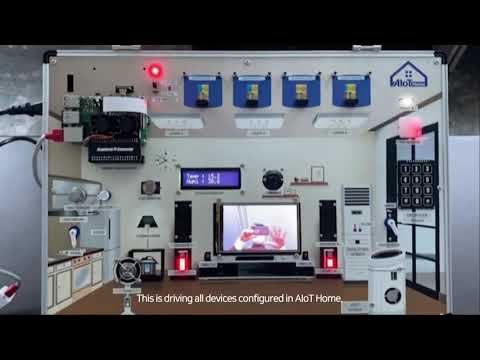
Inside the /examples folder you have a couple files demonstrating how to use each sensor, pin and controller.
Check the /docs/images/code/ folder for more in-depth code examples.
The test.py contains a partial code example, waiting for you to complete it.
With that information, we challenge you to develop a full system, integrating most of the sensors and controllers, trying to replicate the demo by the manufacturer and/or the demo by NOSi.
First, ensure that both the AIoT device and your computer are connected to the same network. Once connected, identify the IP address assigned to the AIoT device.
After completing these initial steps, you have two options to connect to the device
- Navigate to the IP provided by the device, using the port
8888. For example:192.168.40.185:8888 - Login with following password:
soda
This will open a JupyterLab, where you can do your experiments. The first thing to do is to create a Jupyter Notebook and name it something you won't forget.
- Open a terminal window in your machine
- Access the machine via SSH with the IP provided by the device. For example:
ssh soda@192.168.40.185 - Login with following password:
soda
After this, you'll need to navigate to where the code lives inside the AIoT device.
cd Projects/python/notebookInside this folder you'll need to create either a Python file or a Jupyter Notebook and name it something you won't forget.


If you have connected via the terminal, you'll need to make sure you're inside the folder where the code lives (Projects/python/notebook), and run the following command:
python <file_name>.py