To enable the use of TigerGraph-MCP tools via GitHub Copilot Chat in VS Code, follow these steps:
Follow the official GitHub Copilot Chat documentation to set up GitHub Copilot Chat.
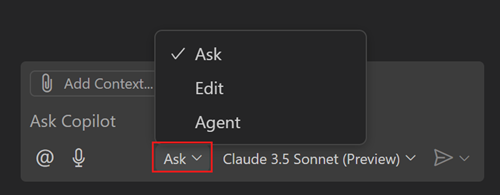
Open GitHub Copilot Chat and switch to "Agent" mode using the Mode dropdown in the Chat view.
In the root of your project, create a .env file with the following content:
OPENAI_API_KEY=<YOUR OPENAI KEY>
TG_HOST=http://127.0.0.1
TG_USERNAME=tigergraph
TG_PASSWORD=tigergraph
Replace
<YOUR OPENAI KEY>with your actual OpenAI API key. This configuration assumes you're running TigerGraph locally and logging in with a username and password. See the Alternative Connection Setup Methods for additional ways to connect to TigerGraph.
Add the following configuration to .vscode/mcp.json in your workspace:
{
  "inputs": [],
  "servers": {
    "tigergraph-mcp-server": {
      "command": "${workspaceFolder}/.venv/bin/python",
      "args": [
        "-m",
        "tigergraph_mcp.main"
      ],
      "envFile": "${workspaceFolder}/.env"
    }
  }
}
Note: Adjust the path in
"command"if your virtual environment is located elsewhere.
After creating this file, you'll see a "Start" button appear above the line containing "tigergraph-mcp-server":. Click it to start the TigerGraph-MCP server.
You can now interact with the MCP tool by entering instructions like:
Suppose I have the following CSV files, please help create a graph schema in TigerGraph:

from_name,to_name,since,closeness
Alice,Bob,2018-03-05,0.9
Bob,Charlie,2020-07-08,0.7
Charlie,Alice,2022-09-10,0.5
Alice,Diana,2021-01-02,0.8
Eve,Alice,2023-03-05,0.6
GitHub Copilot will automatically select the graph__create_schema tool and configure the parameters.
Click "See more" to expand and edit the parameters if needed, or provide another suggestion in the chat to let Copilot modify the parameters based on your needs.
Then click the "Continue" button to run the tool. It will return a message such as:
I have created a TigerGraph schema named "SocialGraph"
indicating that the graph has been created successfully.
Click the Tools icon to view all available tools in TigerGraph-MCP.
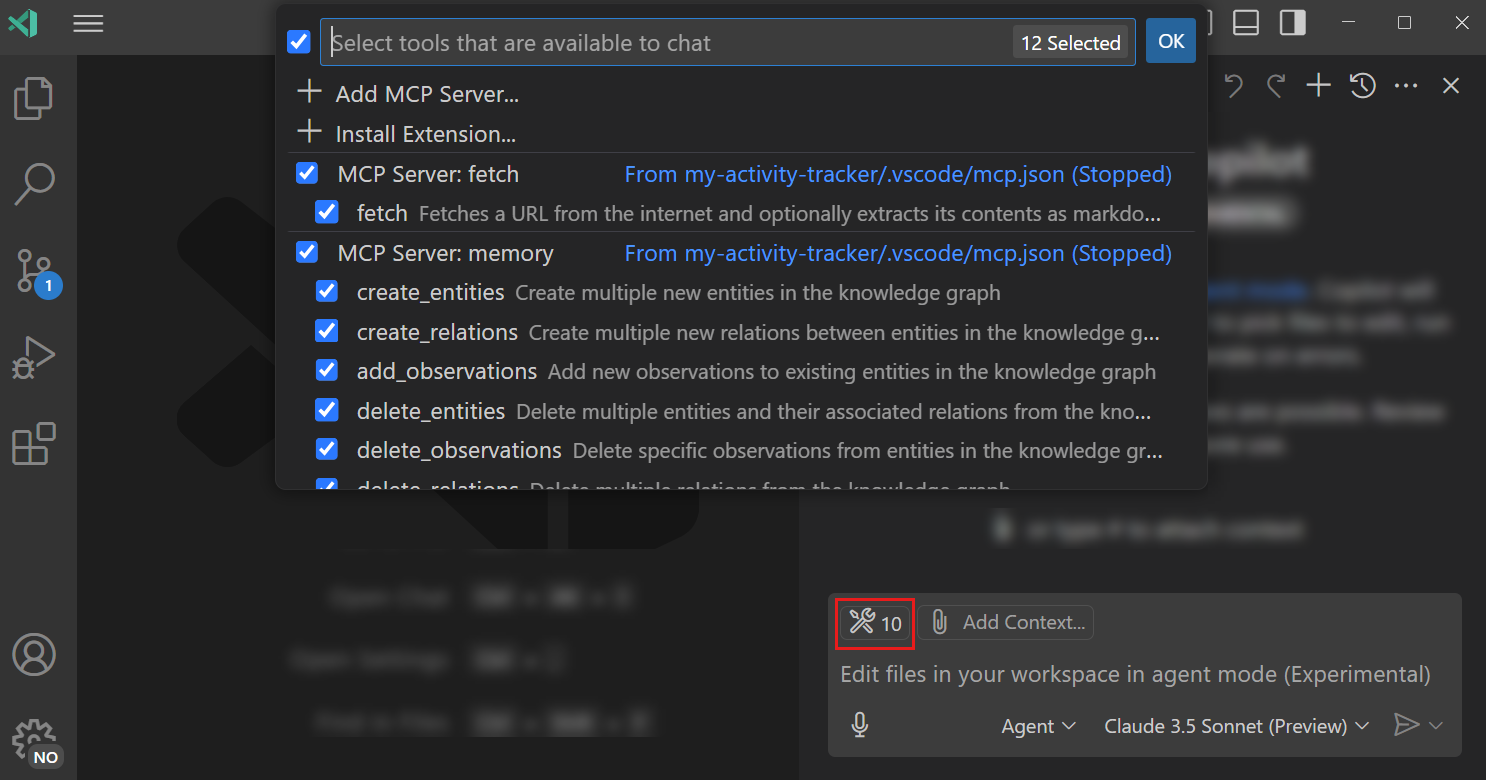
If you'd like to request additional tools for TigerGraph, feel free to create an issue in the repository.
Note: TigerGraph-MCP is based on TigerGraphX, a high-level Python library that provides a unified, Python-native interface for TigerGraph. For more details about the APIs, refer to the TigerGraphX API Reference.